
Quick Start
This page guides you through your first renaming process. Expect 5 minutes to process a folder of 100 episodes.
Prerequisites
- CineRename installed (Installation)
- A folder containing video files (movies, TV show episodes, or anime)
- An internet connection to query TheTVDB / TVmaze (files are never uploaded, only metadata requests are sent)
1. Launch the app and open the Studio
At startup, CineRename opens the Studio screen. This is where everything begins.
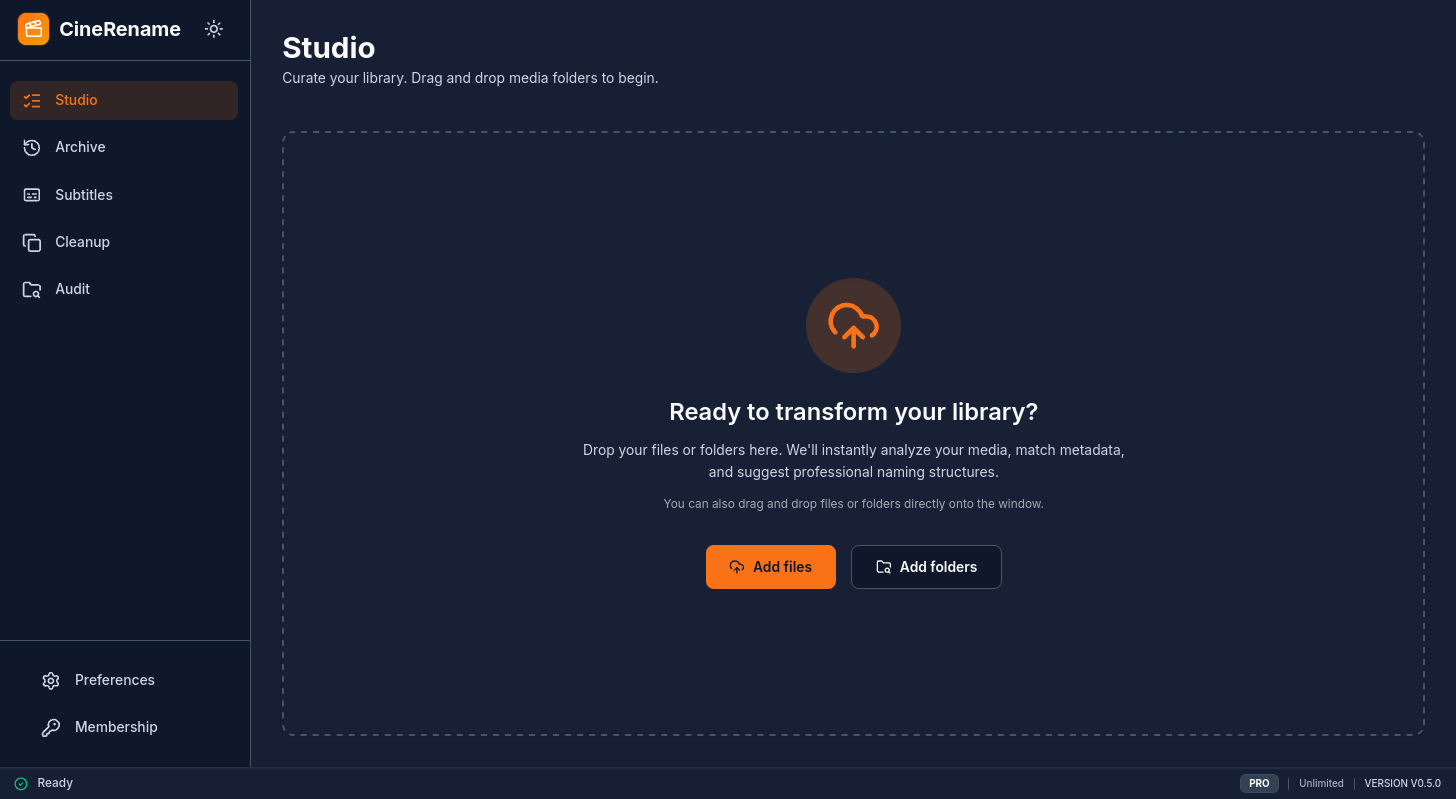
Studio = secure sandbox
No files are touched until you validate. Everything that happens in the Studio is a preview.
Zero Risk: The Time Machine
Even after validation, the History tab allows you to undo any operation with a single click. Made a format mistake? Click Undo and your files instantly revert to their original names.
2. Drag and drop your files
You have three options:
- Drag and drop an entire folder (or multiple files) directly into the Studio window.
- Click on Add files or Add folders.
- Drop a ZIP / RAR archive: CineRename will read its content without extracting.
CineRename automatically detects the type of each file:
- 🎬 Movie — queries TheTVDB for the official title and year.
- 📺 TV Episode — detects season/episode, queries TVmaze.
- 🎌 Anime — uses specific logic (Japanese titles, season numbering sometimes absent).
3. Check the Before / After preview
Each file appears in the list with:
| Before | After |
|---|---|
My.Movie.2023.1080p.BluRay.x264-GROUP.mkv | My Movie (2023).mkv |
Click on any row to see details or edit manually.
Choose the right match
If CineRename hesitates between multiple results, a selector appears. Select the correct movie/episode and the preview updates instantly.
4. Configure the format (optional)
Before validating, you can choose a naming preset:
- Plex (default) —
Series Name (Year)/Season 01/Series Name - S01E01 - Episode Title.mkv - Jellyfin — convention identical to Plex with a few adjustments
- Emby — very similar
- Kodi — variants for XBMC/Kodi
- Custom — edit the pattern in Settings → Presets.
5. Validate the renaming
When you are satisfied, click Rename. CineRename:
- Asks for confirmation (zero-regret ergonomics)
- Renames all files in parallel
- Displays a summary
- Records the operation in the History (indefinitely recoverable)
6. What's next?
- To automatically add subtitles → Subtitles Module
- To clean up multiple copies → Duplicates Module
- To undo or review → History & Undo
- To automate an entire folder → Auto Mode
- To script on a NAS → CLI
Go further
If you manage a Plex / Jellyfin server, read Plex / Jellyfin / Emby to calibrate presets according to your server.