
Subtitles
CineRename integrates a module dedicated to searching and automatically downloading subtitles via OpenSubtitles.
What is it for
Integrated Viewer
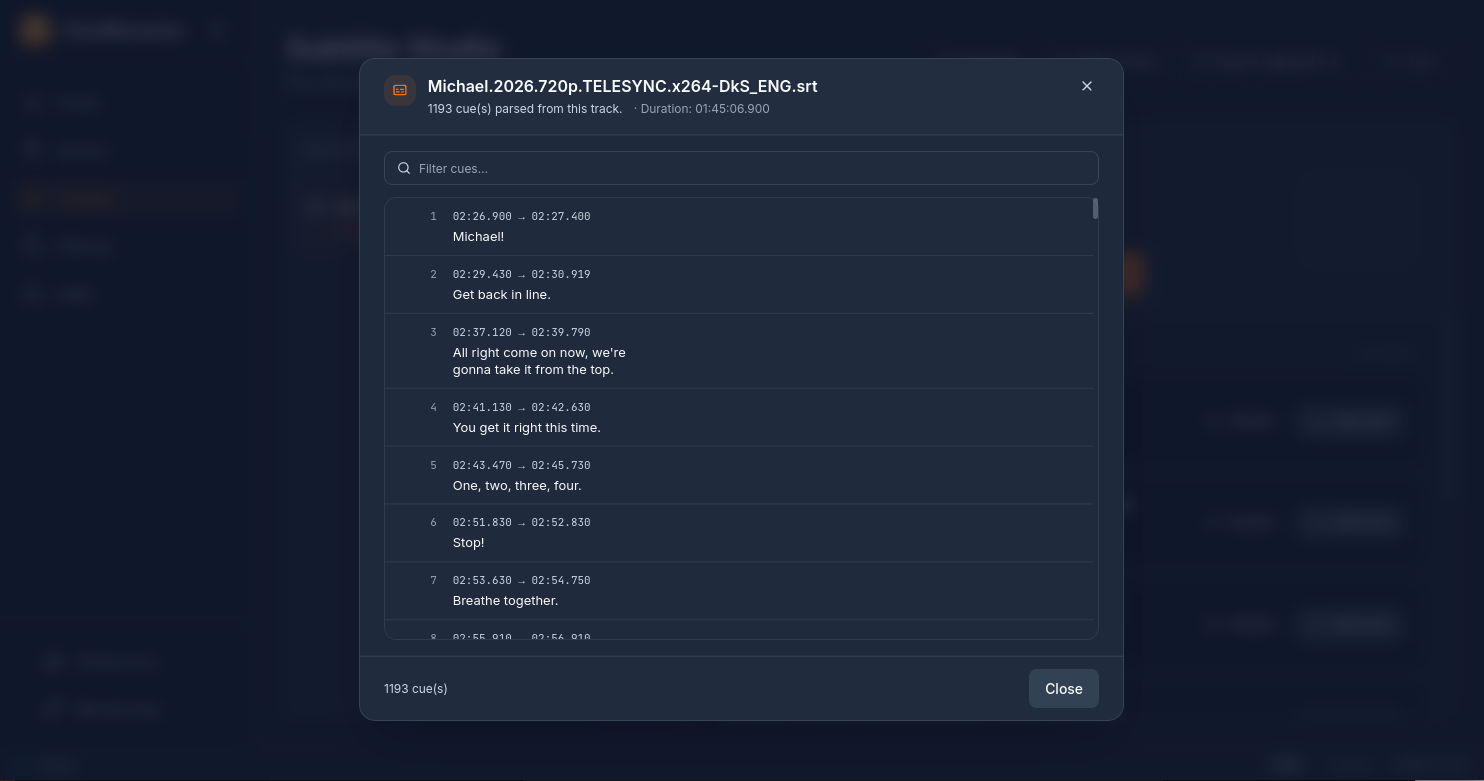
Before downloading, the Show button opens an integrated text player. You can check the sync, read the lines, and use the search bar to find a specific keyword.
Naming options
- Video hash — CineRename calculates the standard OpenSubtitles fingerprint (
OSDb hash) on the first and last MBs of the file. - Hash search + metadata fallback — if no subtitle is found via the hash, CineRename falls back on a search by title, season and episode.
- Download — fetches the files corresponding to your preferred language.
- Plex-friendly naming —
My Movie (2023).en.srtnext to the.mkv, which allows Plex / Jellyfin to attach them automatically.
Configuration
In Settings → Subtitles:
- Preferred language —
en,fr,es,ja... (ISO 639-1 codes) - Fallback languages — if the primary one is not found
- Hearing impaired — whether or not to include SDH subtitles
- Limit per file — only download one
.srtor multiple versions
OpenSubtitles API Key
CineRename bundles a default API key, sufficient for common use. For larger volumes or to obtain a dedicated quota:
- Create an account on OpenSubtitles.
- Retrieve your personal API key.
- Enter it in Settings → Providers → OpenSubtitles, or via the
CINERENAME_OPENSUBTITLES_API_KEYenvironment variable.
See API Providers for full resolution details.
Recommended workflow
- Rename videos first with the Studio (official titles = better OpenSubtitles hits).
- Run the Subtitles module on the same folder.
- Launch Plex / Jellyfin → all subtitles are already properly named and recognized.
Integrated subtitle viewer
Each local subtitle listed in the Subtitles Studio exposes a View button. It opens a window that:
- Parses the
.srtor.vttfile on the Rust side (UTF-8 + BOM, Latin-1 fallback) - Strips markup (
<i>,<b>,{\an8}) for clean display - Displays the lines with their timestamps (
HH:MM:SS.mmm → HH:MM:SS.mmm) - Allows live text filtering (useful for verifying a specific line is there)
- Announces the total duration and the number of parsed lines
Handy for checking that a subtitle is not desynced or truncated before deploying it to the entire library.
Upload a local subtitle to OpenSubtitles
If you have a subtitle that you have retranslated or resynced, you can share it directly with the community:
- In the Subtitles Studio, click on the Send button next to a local subtitle
- Fill in the language code (ISO 639-1:
en,fr,es...), the hearing impaired flag, the release name and an optional comment for moderation - Validate — the app connects to OpenSubtitles (Bearer token login), base64 encodes the file and POSTs it to
/api/v1/upload
OpenSubtitles account required
Uploading requires API key + user account (login + password) in Settings → Providers → OpenSubtitles. The default bundled API key is not enough — you need an account that has accepted the OpenSubtitles contributor terms.
When the upload succeeds, CineRename displays the public URL of the subtitle page (clickable to open in the browser).
Known limitations
- Forced subtitles are not automatically distinguished. You may sometimes need to manually rename to
.forced.srtfor Plex. - Lesser-known animes sometimes have few or no matches. In this case, OpenSubtitles falls back to an external search (e.g. AniDB) — not covered by CineRename yet.
- Embedded subtitles within the
.mkvare not extracted; CineRename only adds external.srtfiles.